 Ask AI
Editing and transformations
Last updated: Oct-22-2026
Cloudinary offers a selection of transformation tools to cater to various needs and preferences. You can choose the tool that best aligns with your specific circumstances.
This table describes the various options:
| Option | Description | Considerations |
|---|---|---|
| Transformation Templates | A set of pre-defined transformations that you can apply to an asset. | ✅ Simplifies your workflow by eliminating the need to repeatedly specify individual transformations when applying the same ones ✅ Ensures consistency by always applying the same set of transformations ✅ Easy to apply with one click ✅ Allows you to preview before downloading it or opening it in a browser window 💡 If you want to add or modify a transformation template, ask your administrator |
| Studio for images | An intuitive interface for applying transformations and AI-driven actions to images, with developer-focused features for viewing code and saving templates | ✅ Apply transformations including AI features like background removal, upscaling, generative fill, and more ✅ View URL transformation syntax and copy SDK code ✅ Save transformations as reusable templates and named transformations ✅ Save transformed assets as new originals or overwrite existing assets ✅ Specify optimization and delivery settings ✅ Use natural language prompts to apply edits |
| Advanced Editor / Transformation Builder Templates for videos |
Create and save transformation templates directly in the Advanced Editor (Transformation Builder), then load and reuse them across videos. | ✅ Save transformations created in the Transformation Builder as reusable templates ✅ Load saved templates to apply them to other videos without recreating the transformation ✅ Reference templates using t_<name> in code ✅ Streamline video editing workflows through template reuse 💡 Enterprise plan: Full access to Save Template and Load Template 💡 Free plan: Transformation Builder isn't Available in the Media Library |
| Trim videos | Allows you to trim your videos. | ✅ Provides a user friendly interface for freely applying your own edits to individual videos ✅ Enables overwriting the original video or saving as a new original ✅ Offers a real-time preview of the changes you make |
| Video Player Studio | Generates code for creating and customizing a Video Player instance on a website | ✅ Accessible from the context menu of a video asset in your Media Library ✅ Simplifies developer workflows by automatically generating code ✅ Provides an easy-to-use interface for customizing the code for the Video Player instance ✅ Opens with a selected video, but the code can be applied to any video to reproduce similar results |
| Derived assets | View an asset’s derived assets, generated when you apply a transformation programmatically or open the asset in a browser. | ✅ Makes it easy for developers to access and reuse derived asset URLs ✅ Helps streamline storage management by exposing what's already been generated |

Check out the Introduction to Cloudinary Assets pathway in the Cloudinary Academy for free self-paced courses on DAM topics.
Transformation templates
- The transformation templates feature is a premium offering for Assets Enterprise plans, and its availability depends on your account setup. If transformation templates is not yet enabled for your account and you'd like to enable it, please contact your Customer Success Manager.
Assets Free plans:
- This feature isn’t included in the Media Library available with the Assets Free plan, which offers basic management. It's part of the Media Library for Assets Enterprise plans.
- To learn more about the features available in the Assets Free plan and how they can support development workflows, see Media Library for Developers.
- For upgrade options or more information, contact us.
Applying a transformation template to an asset generates a transformed asset, which is a copy of the original, modified according to the pre-defined transformations set in the transformation template.
Your organization likely has standards for formatting, sizing, watermarking, cropping assets, etc. If you're repeatedly making the same adjustments to your assets, then transformation templates can reduce repetition in your workflow, while ensuring that organizational standards are met.
Several transformation templates are provided by default. Your administrator can replace these with their own, up to a maximum of 60, by:
- Saving transformations created in Studio as templates.
- Setting named transformations as transformation templates.NoteIf you can't preview assets when applying a certain transformation template, it may be because:
- The template wasn't defined correctly (for example a video template with a transformation that's only valid for images).
- The template contains a transformation that's not supported for preview.
If a template can't be previewed, ask your administrator to make sure the template was set up correctly.
In either case, you can still download the asset or open it in a new tab.
Previewing transformed assets
In the Download Options tab (Assets Enterprise only) of the asset management drill-down page, several transformation templates are listed, enabling you to see how the selected asset would look with those transformations applied.
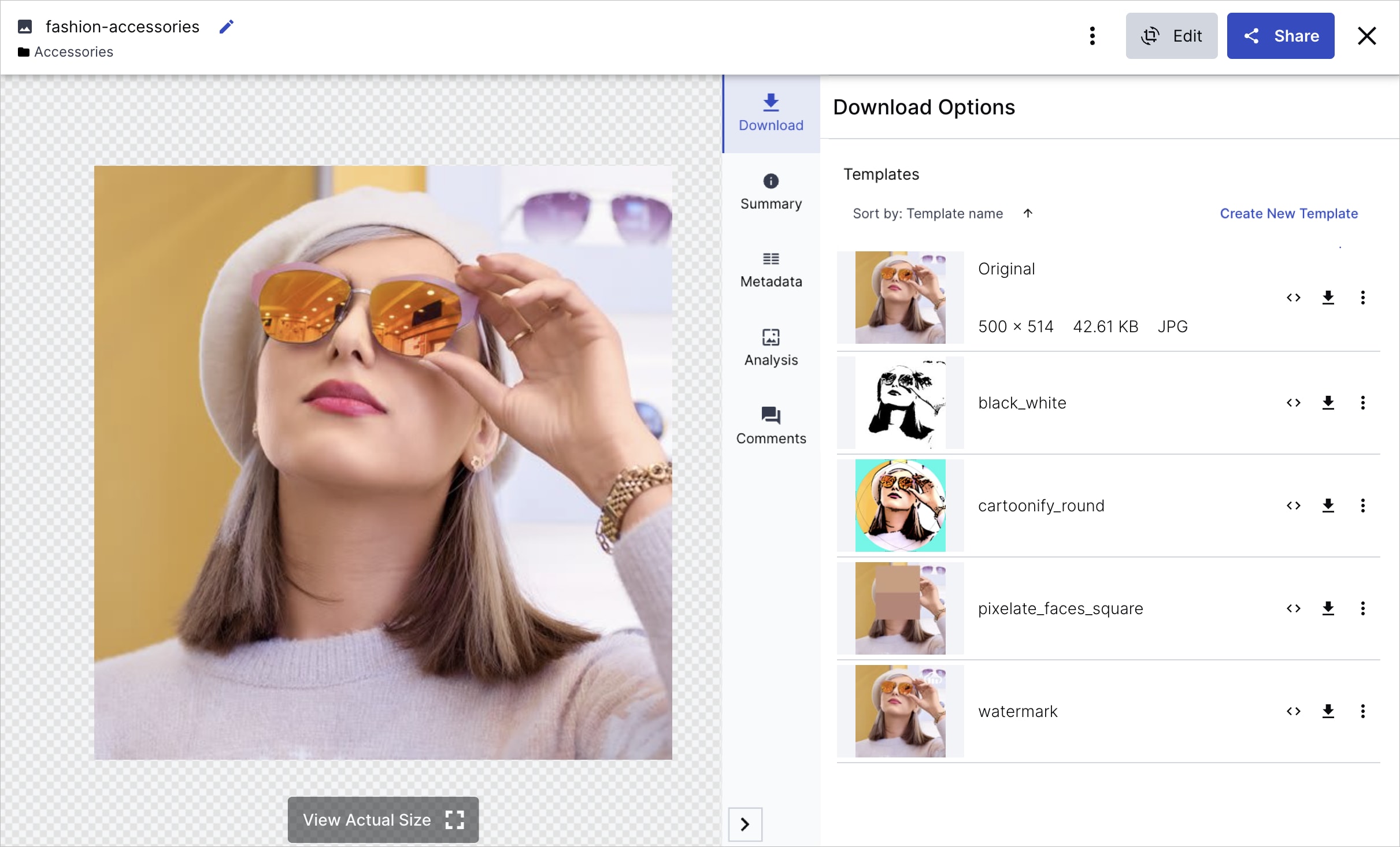
You can click the template thumbnail to preview the transformed asset. For any displayed transformation template, you can perform operations such as opening the transformed asset in a new tab, downloading it, copying the URL, or further editing it in Studio for images, or in the Advanced Editor (Transformation Builder) for videos.
Downloading a single transformed asset
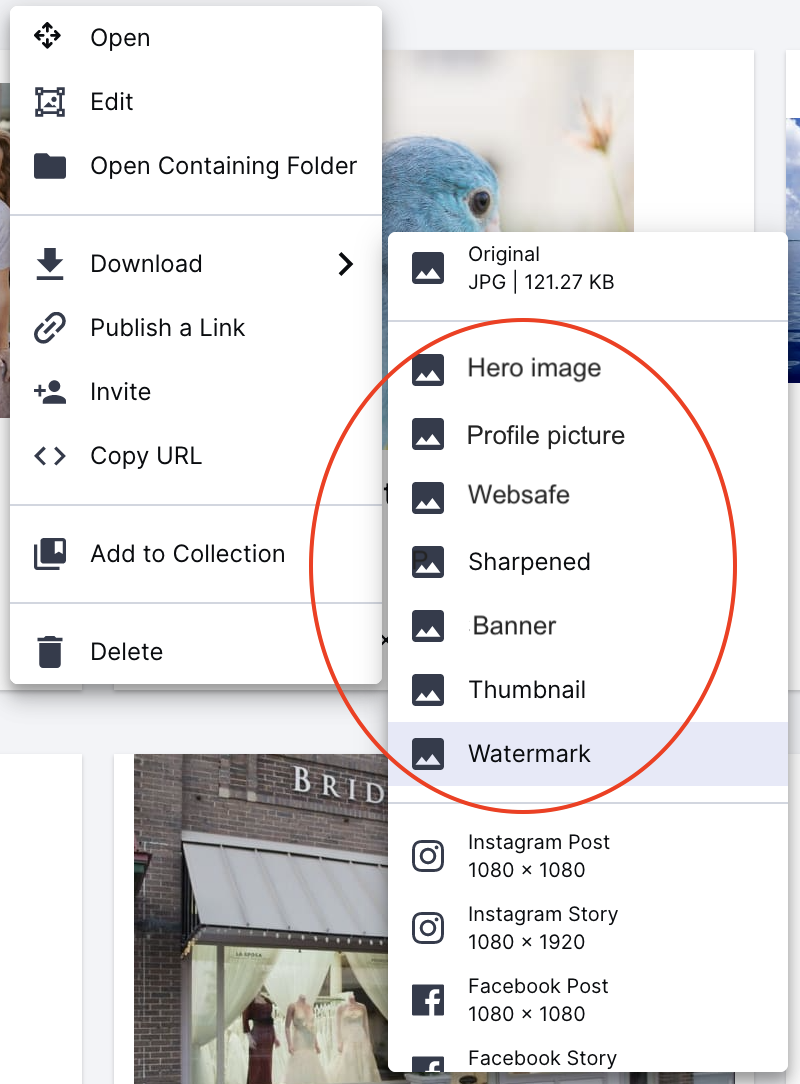
In the Assets, Folders, Collections, and Moderation Media Library pages, you can download a single asset in several different forms, including its original and with a transformation template applied. From the (3-dots) options menu on the asset, open the Download nested menu and click on the transformation template you want to apply on download.
Downloading transformed assets in bulk
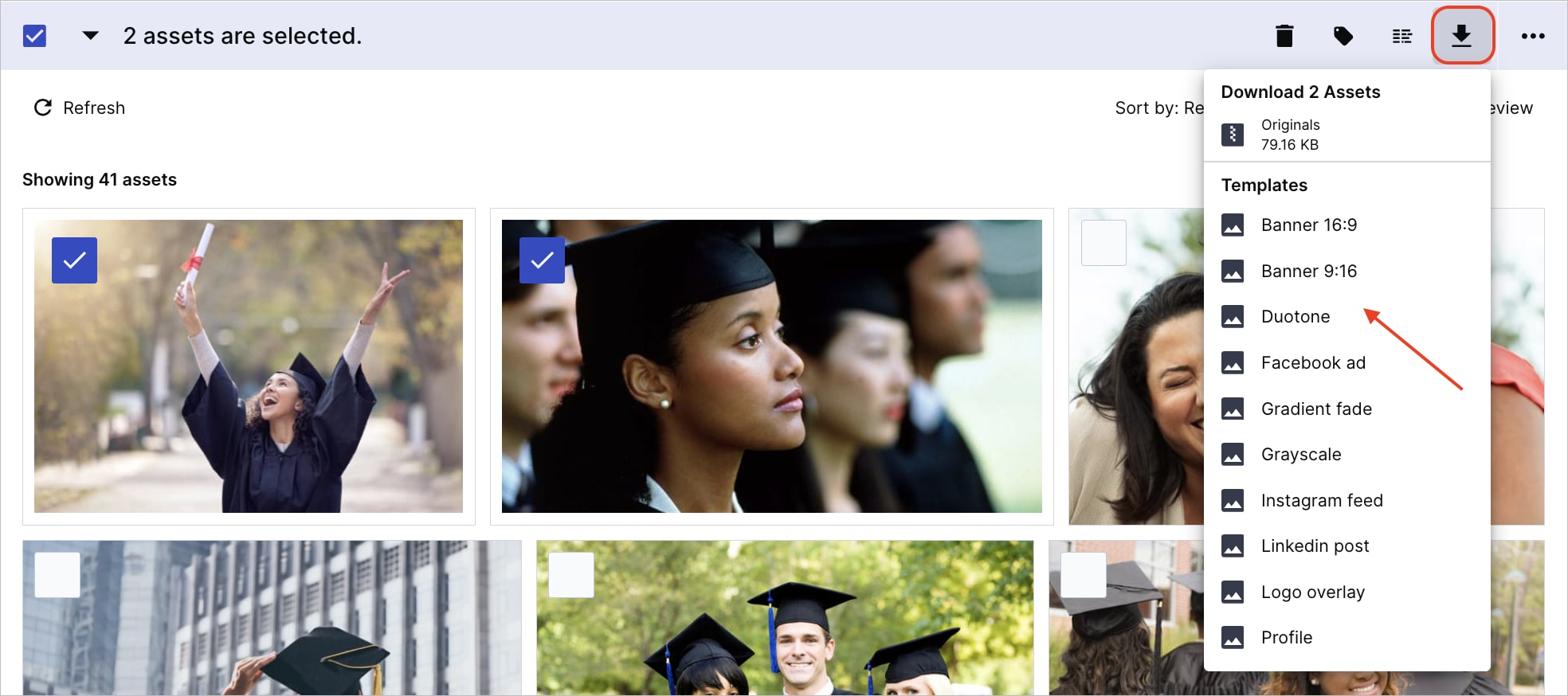
In the Assets, Folders, Collections, and Moderation Media Library pages, you can download multiple assets together, with the same transformation template applied. Select the desired assets and hover over the Download icon in the assets toolbar. All the available transformation templates are listed under Templates. Choose one to generate a ZIP file with transformed assets.
Studio (images only)
Studio is a user-friendly interface for applying transformations and AI-driven actions to multiple images simultaneously. Generate variations for download, or for delivery using the transformed images' URLs.
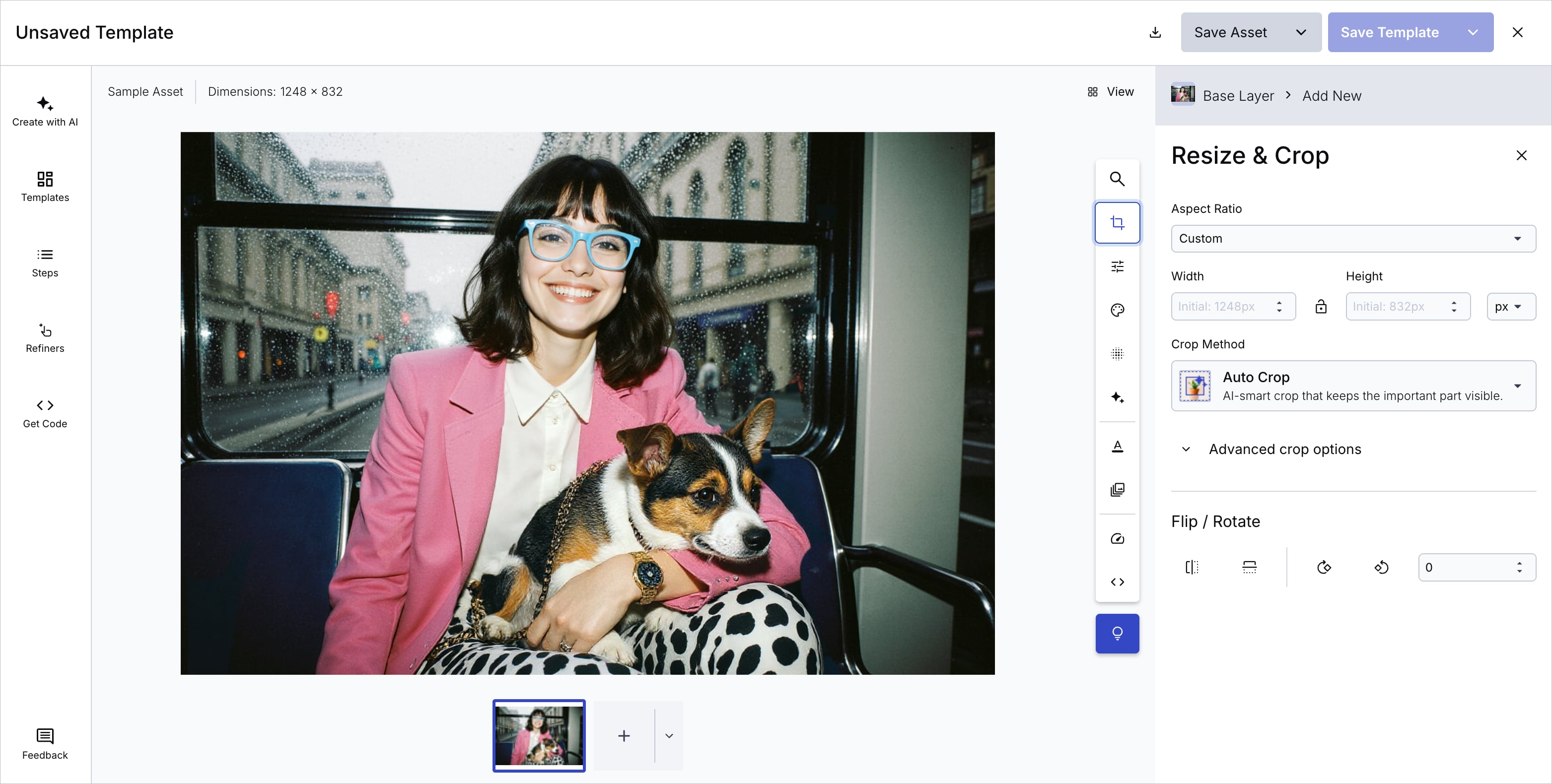
You can use Studio to build transformations, refine AI-generated versions of images, save transformations as named transformations and, in Assets Enterprise plans, as transformation templates, and apply them to one or more images.
After you've applied a transformation to an image, you can save the transformed asset as a new asset in your Media Library, or overwrite the original image. You can also decide not to save the transformed image, but to apply the transformations to the delivered asset, keeping the original intact.
Similarly, you can apply the same transformation to multiple images and save them as new assets in bulk, or overwrite them all at once.
The following sections describe how to use this Studio.
Open Studio
To open Studio for a particular image, in the Media Library, select Edit from the (3-dots) options menu on the image itself.

Alternatively, in the drill-down page, click Edit from the Edit drop-down button.

You can also click Studio in the Image product menu on the left of the Console.
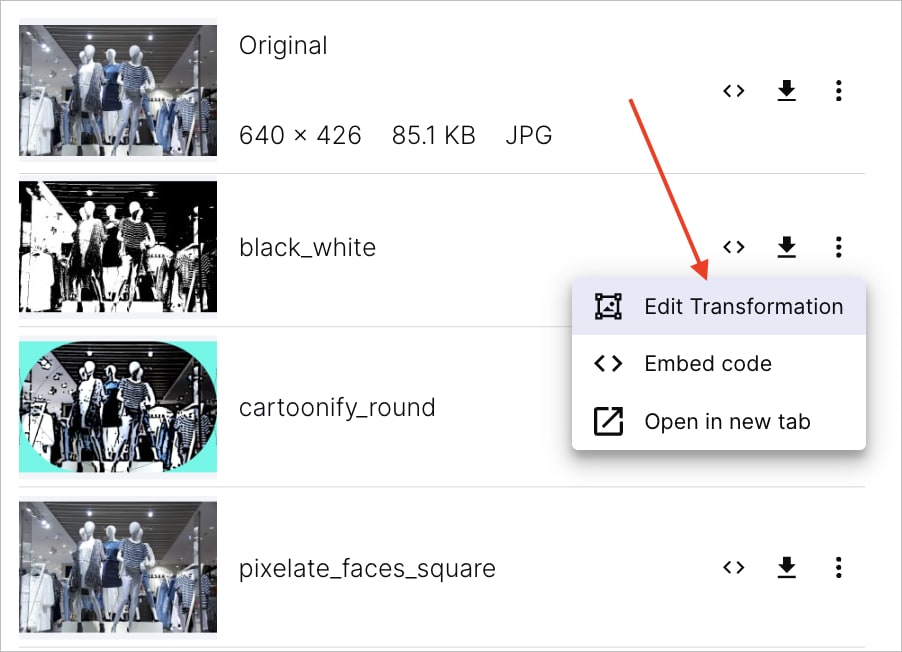
To start with an existing transformation template, go to the Download Options tab on the asset management drill-down page. Select Edit Transformation from the (3-dots) options menu next to a transformation template. Studio opens with the template's transformations already applied, allowing you to preview, modify, and extend them as needed.
Apply transformations
You can apply transformations to your image by manually selecting options from the transformation bar.

Choose from options in the following categories:
- Resize & Crop: Change the dimensions of your image by scaling, cropping to specific aspect ratios, or extracting regions of interest, and flip or rotate your image.
- Adjust: Fine-tune brightness, contrast, saturation, and other color properties, round corners, trim empty space, and set opacity.
- Background & Border: Specify a background color for padding or transparent areas of your image, and add a border with a specified width and color.
- Effects: Apply artistic filters, blurs, pixelation, color shifts, and other visual effects to stylize your image.
- AI Transformations: Use AI-powered features such as background removal, content extraction, upscaling, generative fill, generative background replace, generative remove, generative recolor, generative replace, drop shadow, AI image enhancer, and generative restore.
- Text Layers: Add text overlays with customizable fonts, colors, sizes, and positioning to annotate or brand your image.
- Image Layers: Overlay other images such as logos, watermarks, or decorative elements onto your base image.
- Optimization: Select options that optimize the way in which Cloudinary delivers the image, such as format, quality, color space and DPR. To apply auto format and auto quality to your delivery URL click the Get Code tab and enable Auto Optimization.
- Custom Syntax: Enter transformation parameters directly using Cloudinary's URL-based transformation syntax for advanced customization.
You can also use the search at the top of the bar to find the transformation you're looking for.
Steps
Studio saves each transformation applied to the preview image as a step. You can change the order of the steps, disable, and delete them. If you disable a step, its associated transformation is temporarily removed from the preview until you re-enable it.
To see all the steps, click Steps in the left panel.

You can also see the URL transformation syntax required to deliver the image shown in the preview, or choose your preferred language from the drop-down selection to see the code for that SDK.
Refiners
Use refiners to fine-tune your AI-powered transformed images, for example those with background removal, generative fill, and generative background replace, plus set your own focus areas.
Depending on which AI transformations you've used, you'll see different refiners available in the Refiners panel.

In the Background Removal Refiner, for example, you can clean up any parts of the background that weren't removed, or restore parts that were.
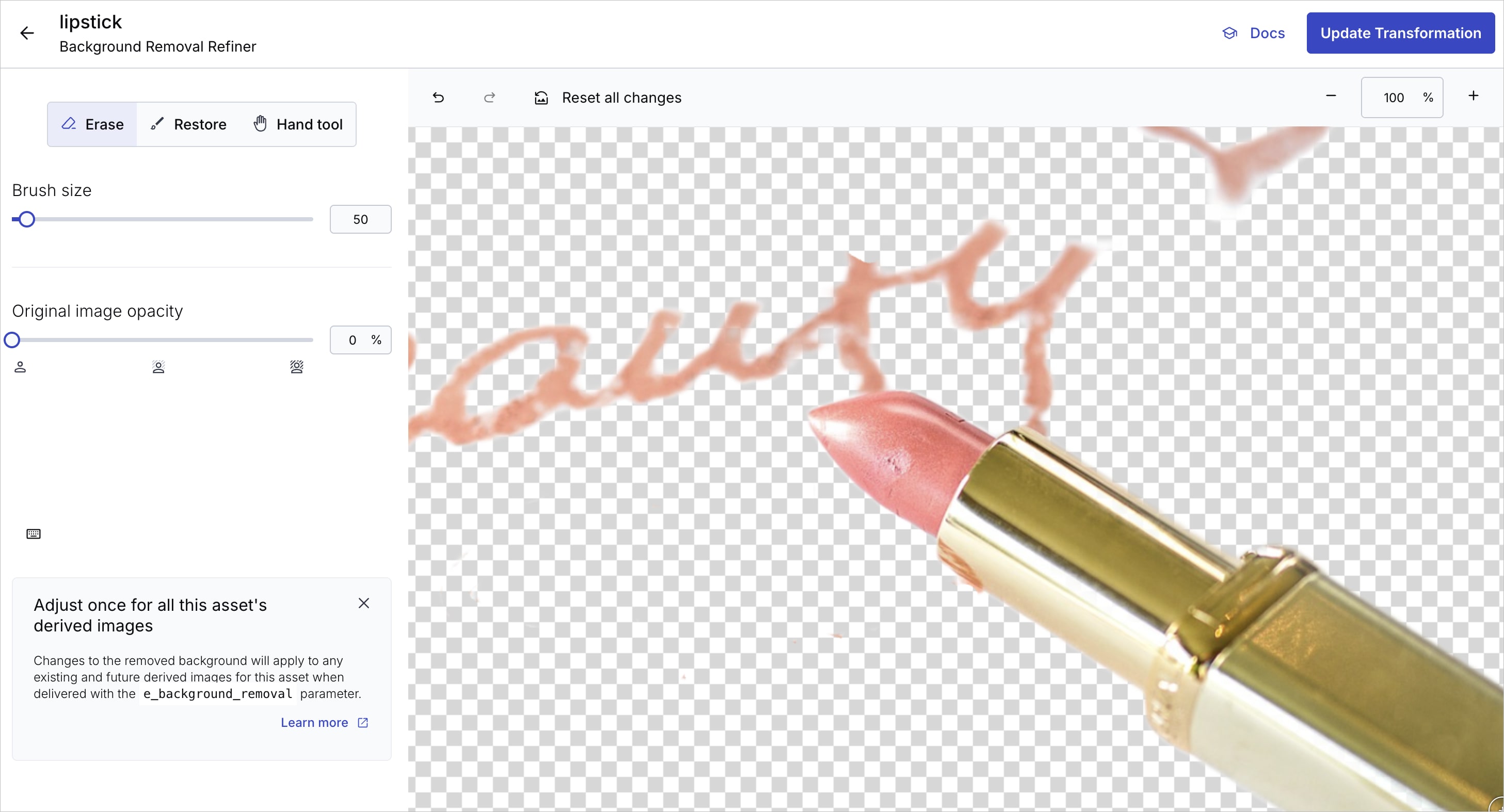
Learn more about transformation refiners.
Get Code
In the Get Code panel you can copy the URL or SDK code for delivering your image with your edits applied. You can additionally add q_auto and f_auto to the URL to automatically optimize format and quality when the image is delivered.

Learn more about image optimization
Create with AI
In the Create with AI tab, you can use natural language to describe how you want to edit the image. The chat suggests the transformations to apply with a preview of how the image looks with them applied. You can then choose to apply the suggestions to the preview image and automatically add them to the steps.

Templates
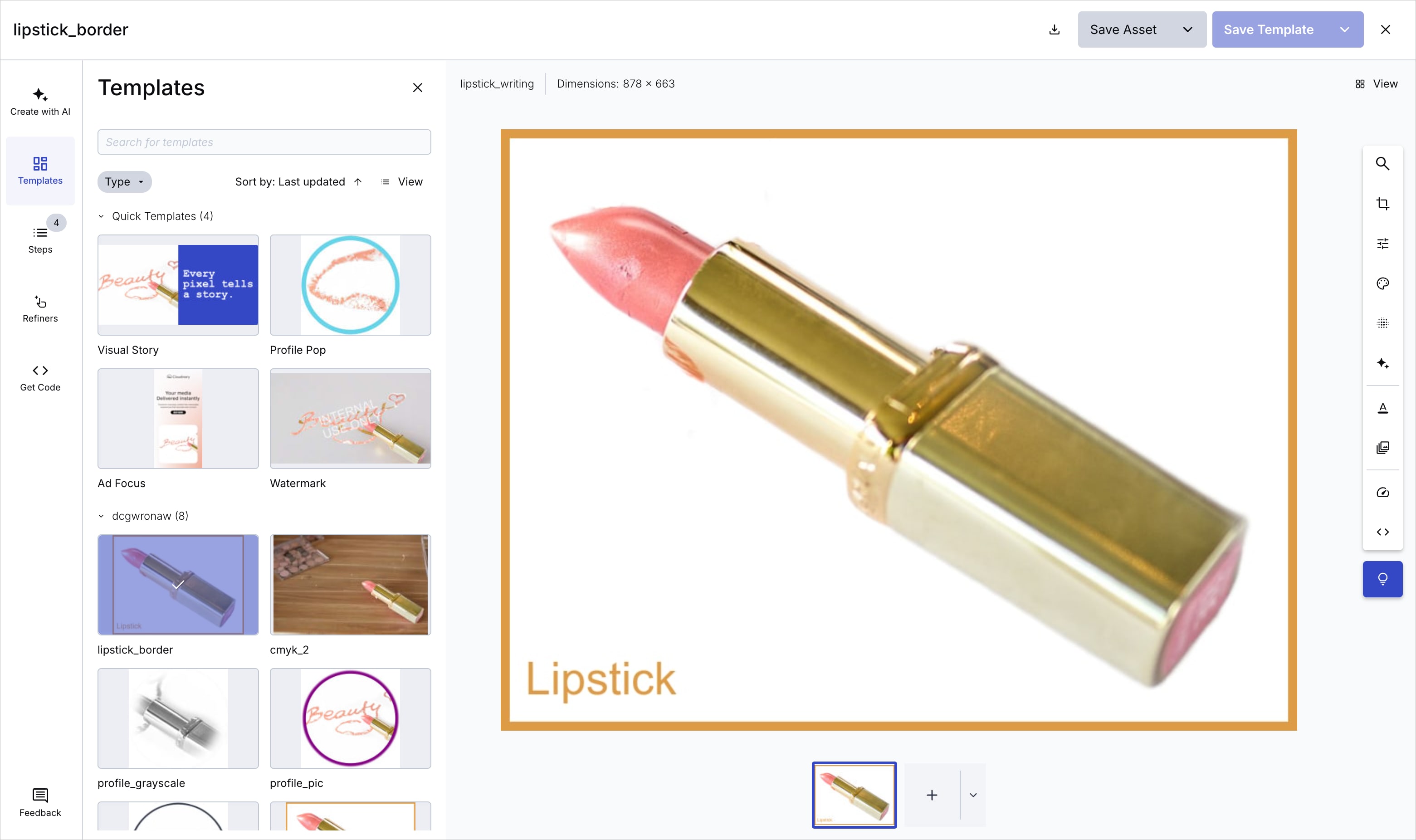
Templates are a saved set of steps. Saving a template automatically creates a named transformation and, in Assets Enterprise plans, makes it available as a transformation template in the Media Library.
Saved templates appear in the Templates tab. This allows you to apply the same transformations to other images and are available any time you re-enter Studio.
Anyone who has access to transformation templates in your product environment also has access to these templates in Studio for easier sharing and collaboration.
Save an image with transformations applied
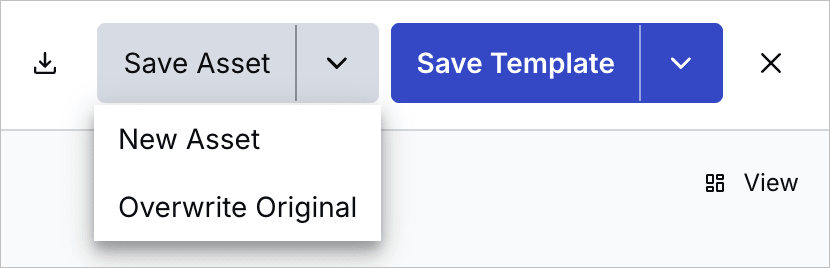
You can choose to save the preview image with the transformations applied either as a new image or overwriting the current image.
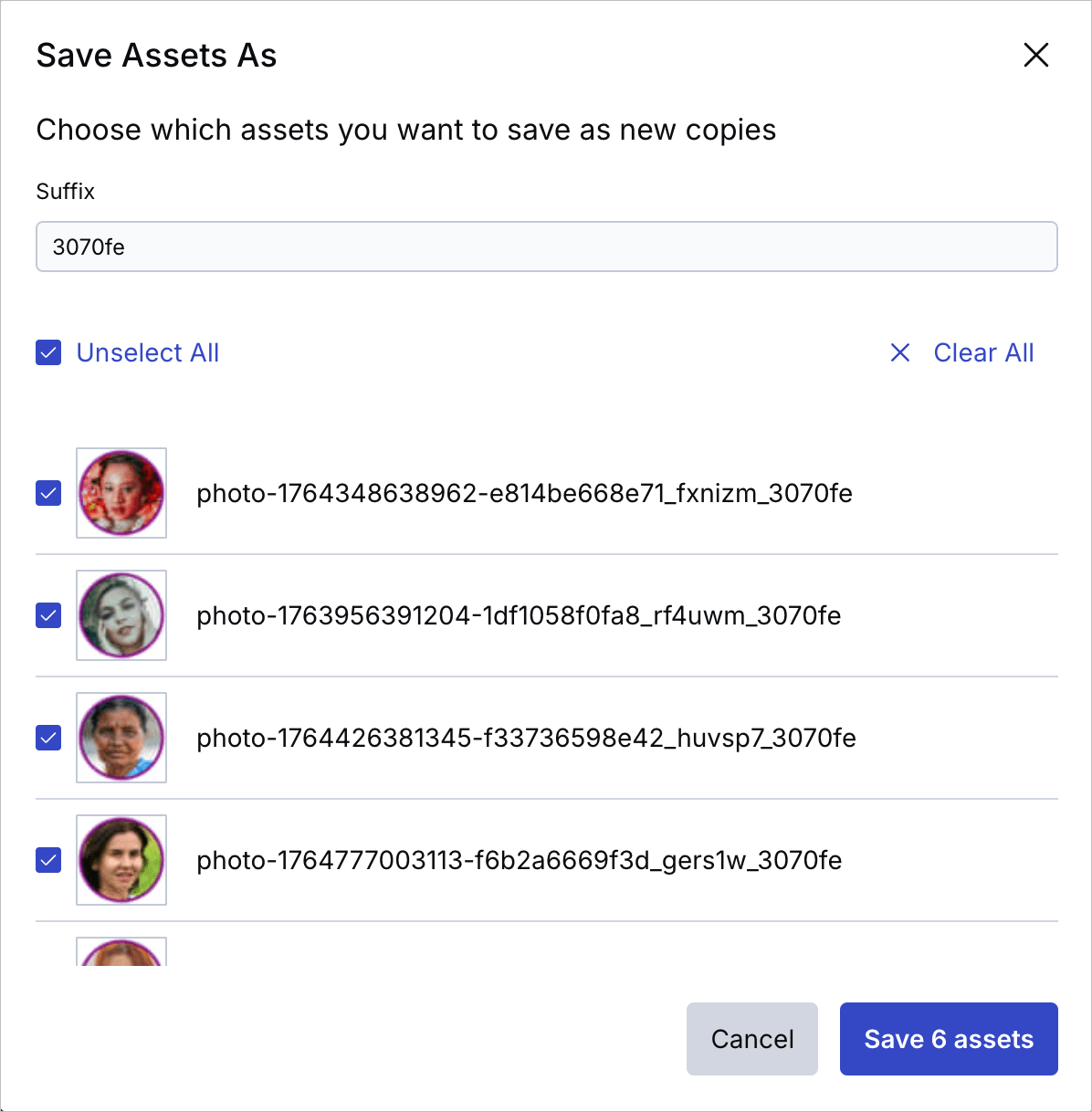
If you save it as a new image, you can choose the display name of the new image. The public ID of the new image is the public ID of the original image plus random characters appended as a suffix.
You can also download the transformed image regardless of whether you've saved the asset or template.
Preview multiple images
If you're intending to apply the same transformations to multiple images, you can preview them with the same set of transformations or template applied.
Add more preview images into Studio using the Add Assets button at the bottom, then select images from your product environment, and/or upload new ones.

You can click through each of the images in turn or change the view (button in the top right corner) to see all images together.


Next to the Add Assets button is a drop-down menu with further options:
- Use the Replace All option to remove all the selected images and select different images.
- Use the Reset to Default option to remove all the selected images and show the
main-sampleimage as the only preview image.
Save multiple images with transformations applied
Similar to saving one image with transformations applied, you can save multiple images, either as new images or overwriting existing ones. In both cases, you can select which of the preview images to save. If saving as new assets, you can provide a suffix to apply to each of the display names.
Trim videos
When a video is displayed in the asset management drill-down page, you can click the Edit pull-down button and select the Trim Video action.
From this view, you can easily take off part of the beginning or end of a video clip. Move the left or right handles of the slider to trim your video.
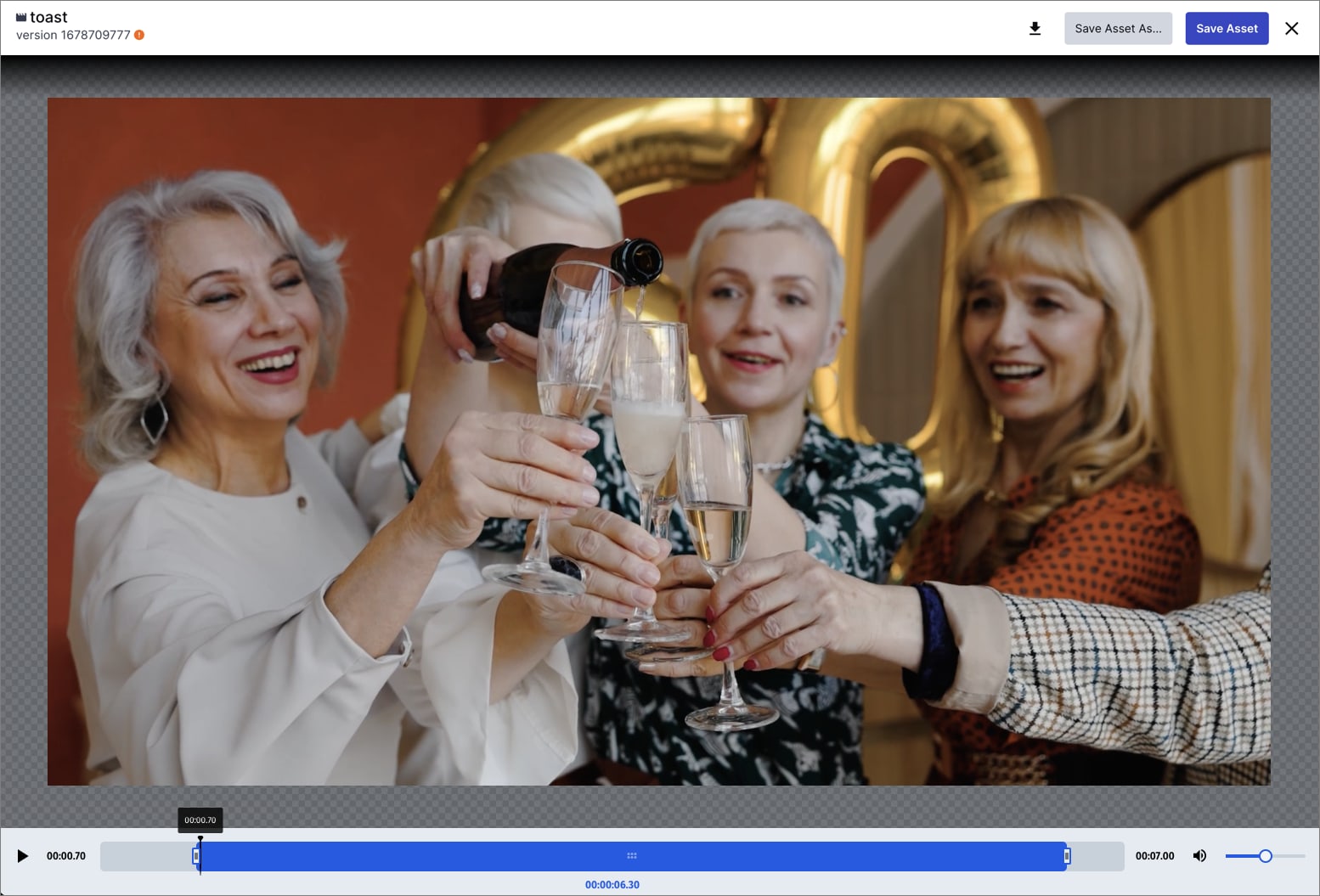
When you're finished trimming, you can either:
- Download the trimmed version without modifying the original.
- Click Save to overwrite the original asset with your trimmed version while keeping its metadata. If backups are enabled for your product environment, then you'll be able to easily revert to a previous version if needed.
- Save the trimmed version as a new asset with the same metadata and in the same folder as the original. You can use the public ID and display name (not supported in product environments using the legacy fixed folder mode) that were generated for you based on the original asset with a random suffix added, or you can enter your own. The public ID must be unique.
Advanced Editor (Transformation Builder)
The Advanced Editor (Transformation Builder) is a user-friendly interface for creating variations of your videos by applying transformations using intuitive UI elements.
Apply transformations to the selected video. When you're done, you can:
- Download the video variation
- Copy the URL with transformations
- Save the transformations as named transformations and templates (Assets Enterprise only). See Working with video templates.
- Save the variation as an asset in your Media Library by uploading the transformed video URL. See Saving the transformed video.
Assets Enterprise plans:
- The Advanced Editor (Transformation Builder) is available in the Media Library to all Assets Enterprise plans.
Assets Free plan:
- This feature isn't included in the Media Library available with the Assets Free plan, which offers basic management.
- To learn more about the features available in the Assets Free plan and how they can support development workflows, see Media Library for Developers.
- For upgrade options or more information, contact us.
To open the Advanced Editor:
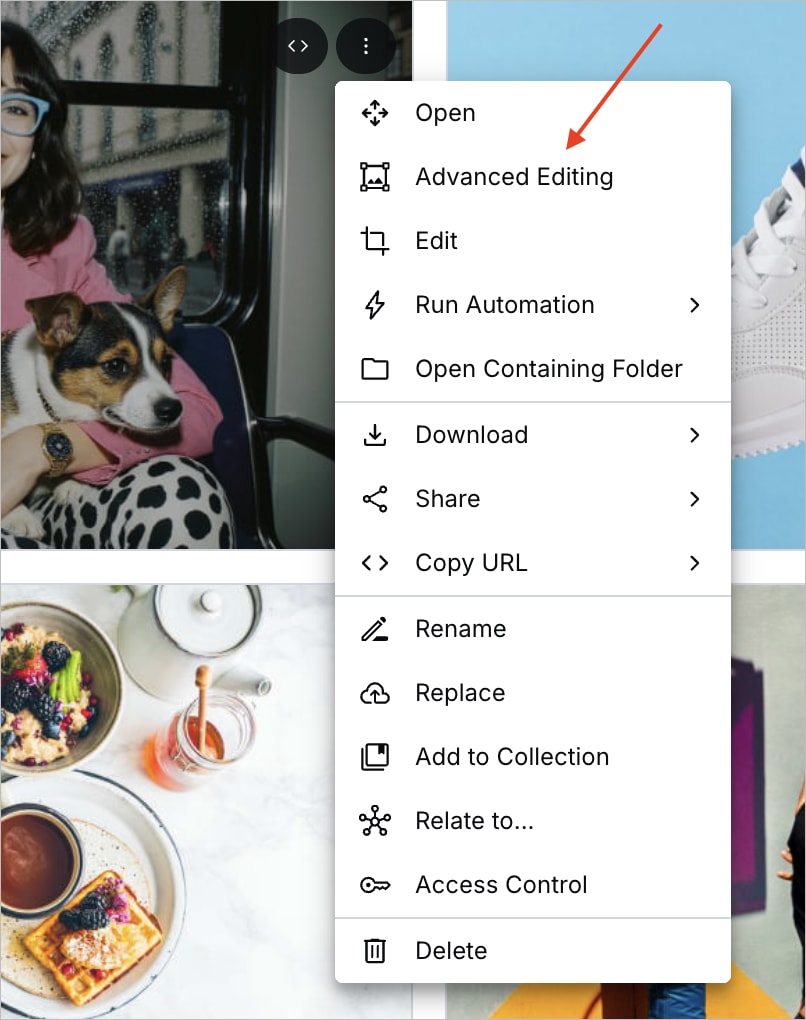
- Select Advanced Editing from the (3-dots) options menu on the asset itself:
- Alternatively, on the asset management drill-down, click Advanced Editing from the Edit pull-down button:

- To start with an existing transformation template, go to the Download Options tab on the asset management drill-down page. Select Edit Transformation from the (3-dots) options menu next to a transformation template, select Edit Transformation. Studio opens with the template's transformations already applied, allowing you to preview, modify, and extend them as needed:
Transformation Builder video tutorial
Watch this video for a quick introduction to the Transformation Builder:
This video is brought to you by Cloudinary's video player - embed your own!
Use the controls to set the playback speed, navigate to chapters of interest and select subtitles in your preferred language.
Tutorial contents
Create a transformation using the Builder
To create a new transformation:
- Open the Builder.
- Select the mode to use.

Construct mode
The Transformation Builder in construct mode provides:
- A simple and intuitive UI for selecting and configuring transformation actions - easily discover actions and parameters as you build.
- Transformations built as a series of self-contained actions so you can see the results of each one as you apply it.
- URL and SDK code ready to copy and paste directly to your code.
- The ability to update the default preview image to something from your own product environment.
- Quick edit functionality, to easily add transformations using URL syntax.
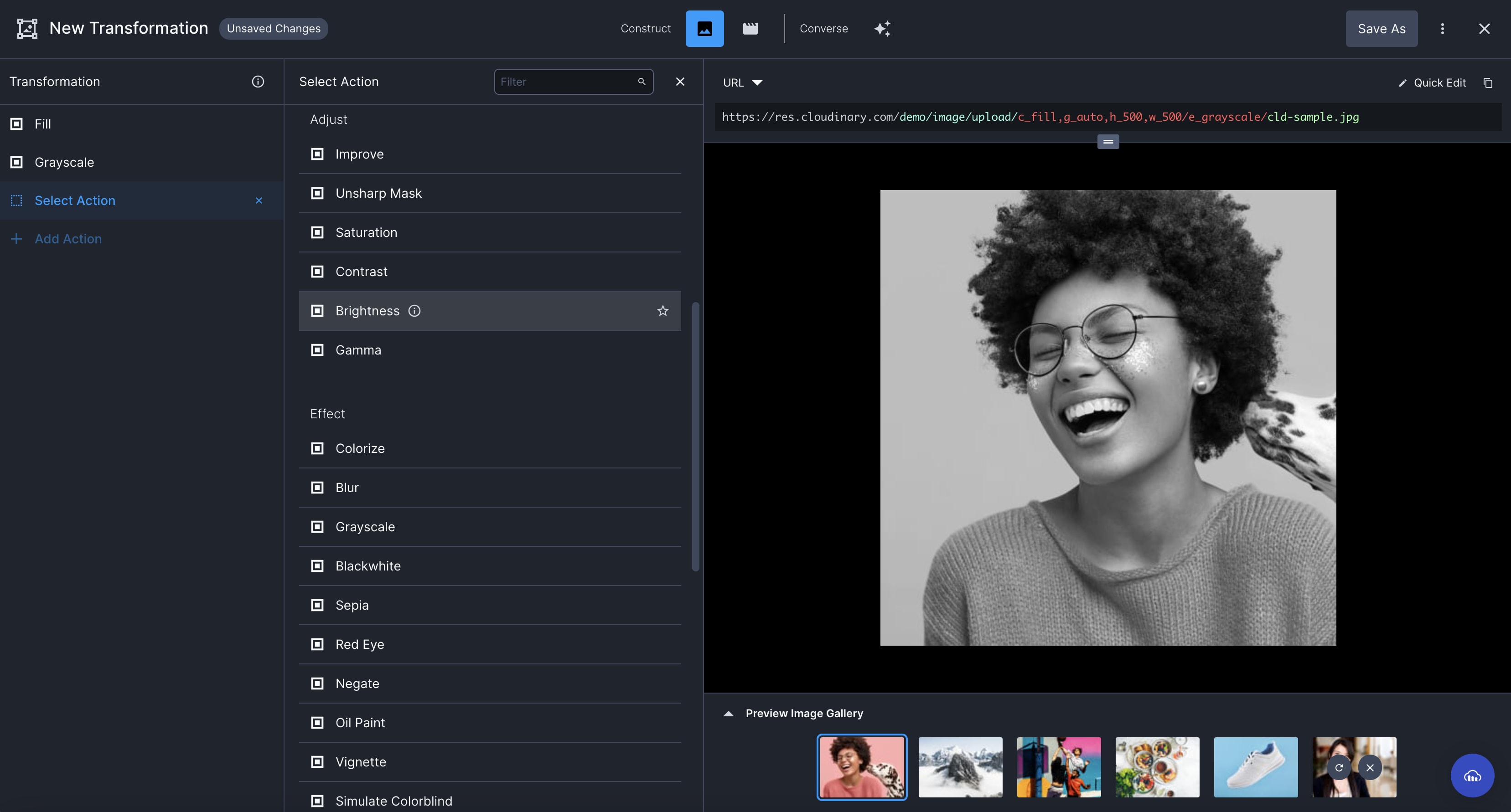
The builder supports most common transformation actions. If the transformation action you are trying to apply is not listed, you can add an Additional Transformation action and use transformation URL syntax to specify your transformation. Alternatively, you can switch to the legacy editor to create your transformation.
Converse mode
The Transformation Builder in converse mode provides:
- An AI-powered conversational interface to describe the transformation you want to create with natural language.
- Iterative prompts to continue the conversation and perfect the transformation.
- URL and SDK code ready to copy and paste directly to your code.
- The ability to update the default preview image to something from your own product environment.
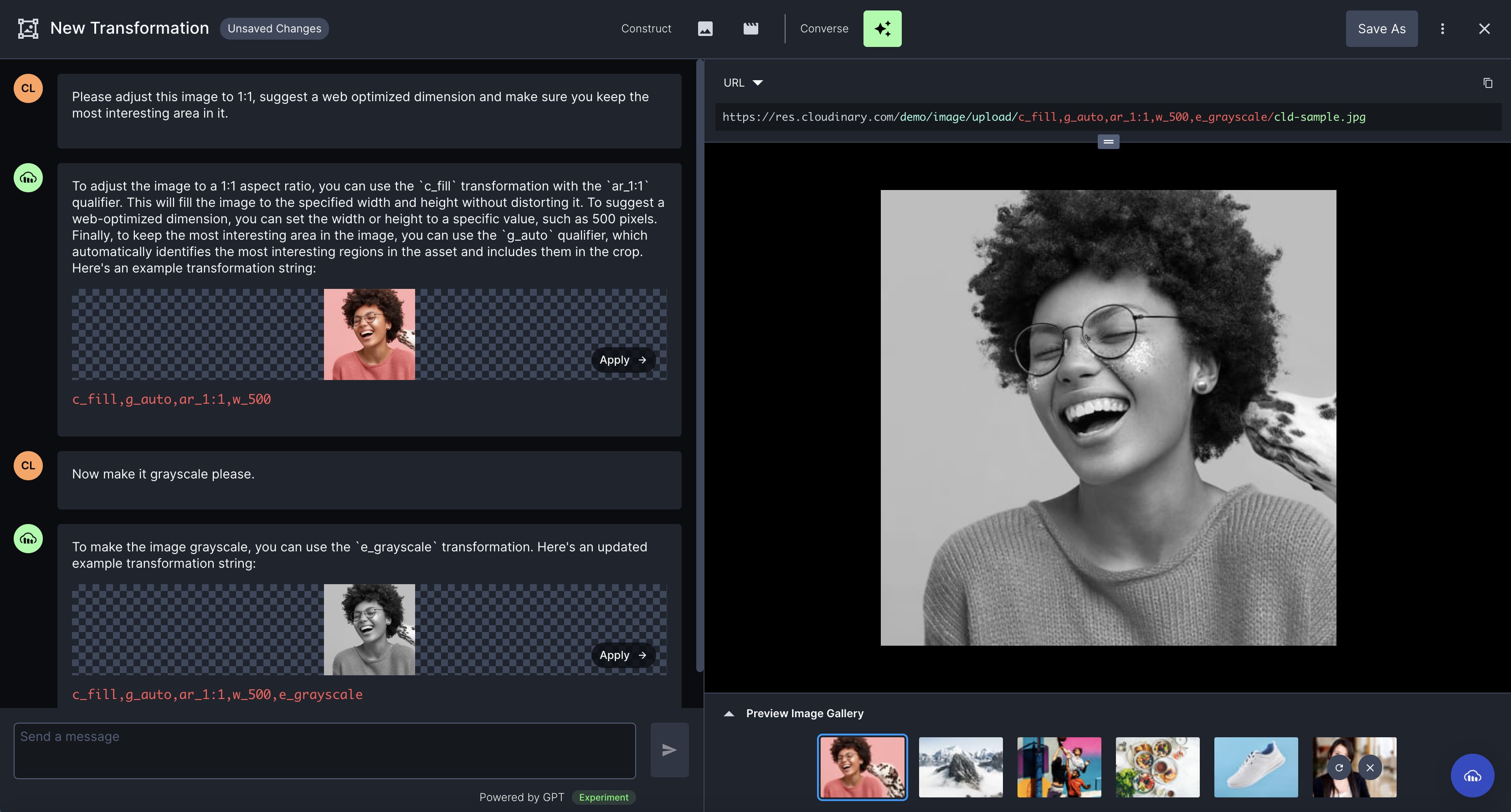
- The conversational interface is powered by GPT.
- It answers questions related to Cloudinary transformations only.
- The use of AI, including the GPT model, means that answers may not be 100% accurate.
- We have implemented mechanisms to improve the accuracy of results for transaction-related queries compared to using ChatGPT directly.
- We are continually learning and making improvements as this technology progresses.
Working with video transformation templates
However, Save as Template and Load Template work with named transformations only. Transformation templates in the Media Library are available only with Assets Enterprise plans.
For upgrade options or more information, contact us.
You can save and load named transformations directly from the Transformation Builder when working with video assets. With Assets Enterprise plans, they're also automatically available as transformation templates in the Media Library. This lets you reuse transformations across videos without recreating them each time.

To save the current transformation as a template, click Save as Template at the top of the page. In the Save Template dialog, enter a unique name and click Save. Template names can't duplicate existing template names. After saving, use t_<name> when referencing the template in your code. For naming rules, see creating named transformations.
To load a saved template, click Load Template at the top of the page and select a template from the drop-down.
Saving the transformed video
Video transformations create variations of the original video, but don't save the derived asset as an original asset in your account.
To save a transformed video as an asset:
Re-upload the transformed video using its delivery URL, including the transformation parameters.
- If you want to save the derived asset as a new asset, specify a different
public_idwhen uploading the asset. - If you want to replace the original asset, specify the same
public_idwhen uploading the asset. If performing the upload using the Upload API, make sure to pass theoverwriteparameter and set it totrue.

Error
Rate this page:
