 Ask AI
Cloudinary Image Component
Last updated: Jul-21-2026
The Cloudinary Image Component is available after you've installed the cartridge and enables you to embed images from your Cloudinary product environment into pages created with Page Designer.
This page explains how to use the Cloudinary Image Component, how to make all images responsive and gives an overview of features available in the Cloudinary Media Library.
Using the Cloudinary Image Component
The Cloudinary Image Component lets you choose the image to display directly from your Cloudinary Media Library. You can then add image and text overlays, and configure other settings such as the alt text for the image, a placeholder image to display while the full image is downloading, a link from the image, and transformations to apply to the image to suit your design.
Embed a Cloudinary Image Component
To embed a Cloudinary Image Component into your page, in Page Designer, select and drag a Cloudinary Image from the Components menu.

Insert an image from Cloudinary
To configure the Cloudinary Image Component, click the embedded component to open the Cloudinary Image Component configuration panel.

-
To insert an image from your Cloudinary product environment, click Choose Image. The Media Library opens.
TipSee Commonly used Media Library features for information about the Media Library. Select the image you want to insert and click Insert.


Add image and text overlays
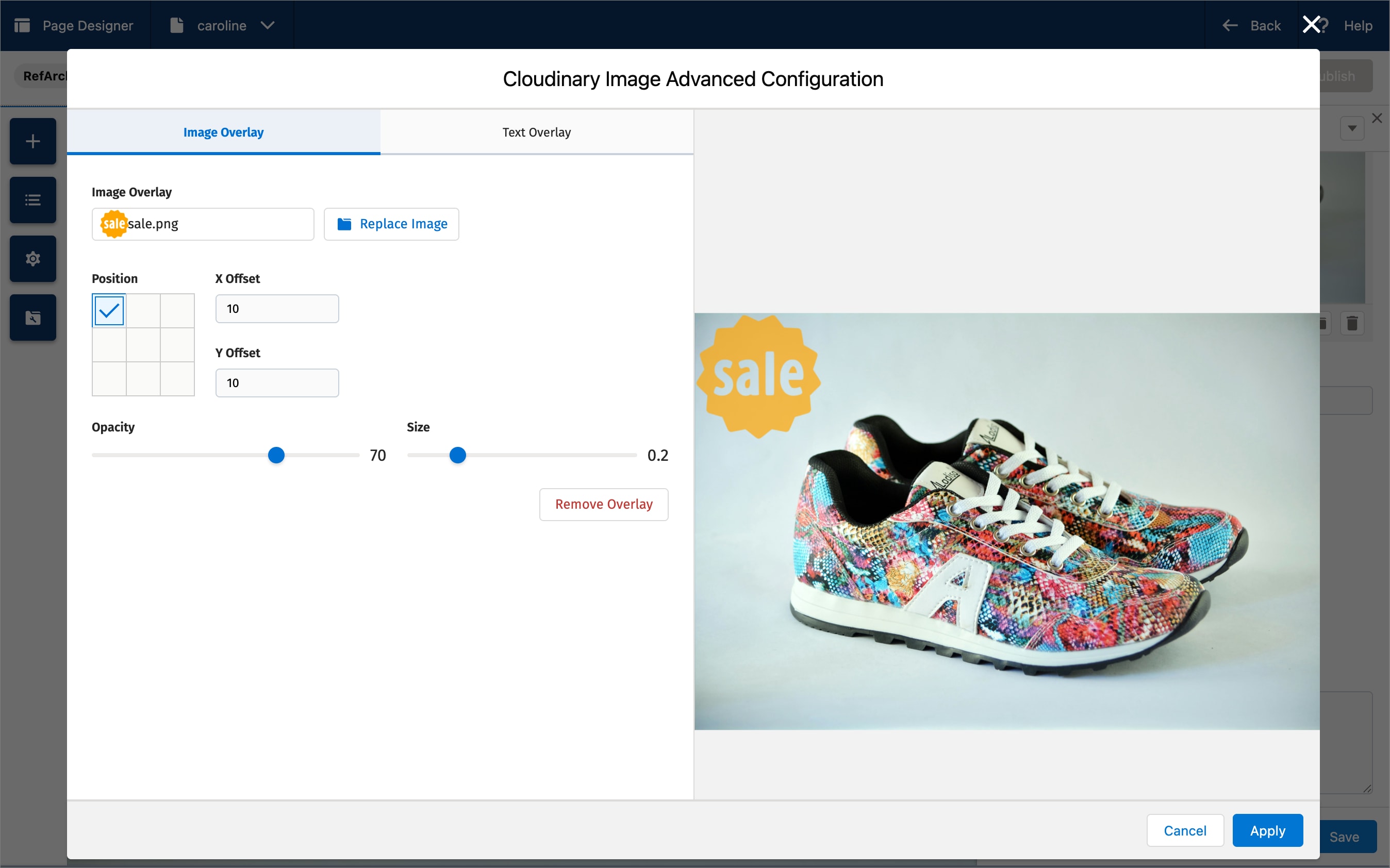
- To add an image or text overlay, select the Advanced button from the configuration panel.
- In the Image Overlay tab, select the image you want to overlay, then choose its position, opacity and size.

- In the Text Overlay tab, type the text you want to overlay, and choose the font, position and color.

- Click Apply to save the changes.

Configure image settings
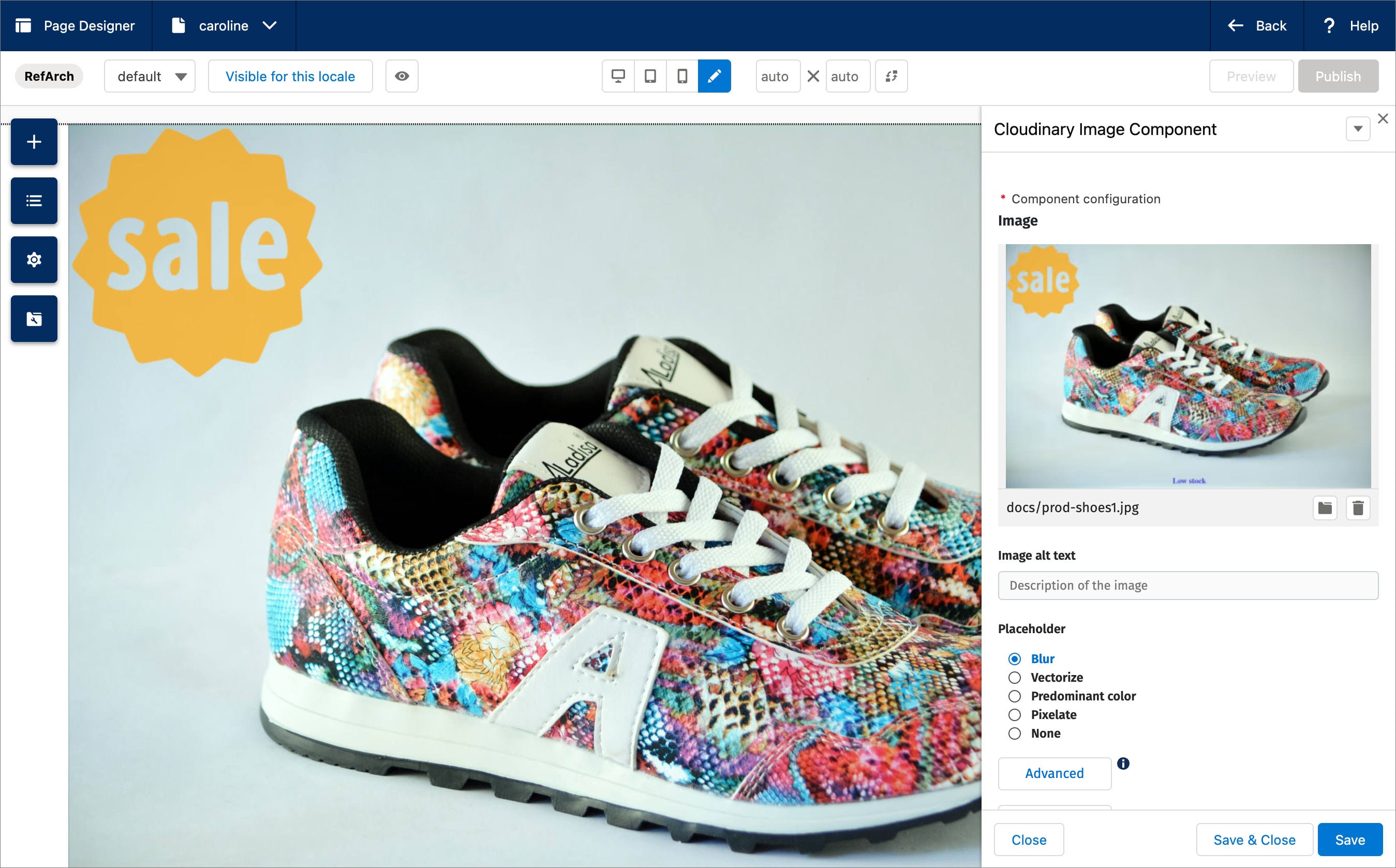
You can configure other settings in the Cloudinary Image Component configuration panel as follows:
- Image alt text: The alt text you want to apply to the image.
- Placeholder: The type of image to display while the full image is loading.
- Image Link: A URL to link to from the image.
-
Transformation override: The transformation to apply to the image in URL syntax, e.g.
c_fill,g_auto,w_500/e_grayscale. This overrides any globally configured transformations and also any image or text overlays that you've applied.
Responsive design with image breakpoints
You can customize breakpoints for image widths to align with your specific page layouts. While default breakpoints are [3840, 2560, 1200, 800] pixels, adjusting these based on your page design needs can enhance performance and user experience. Be sure to consider different screen DPRs. For example, a CSS width of 1,000px on a retina screen (DPR 2) would need a breakpoint of 2000 to display at its best.
To implement, set your desired breakpoints in pixels in the Cloudinary Image Breakpoints setting located at Merchant Tools > Site Preferences > Custom Site Preference Groups > Cloudinary Page Designer. Once configured, images will automatically resize according to these specified widths, ensuring optimal display across all devices.
Commonly used Media Library features
The SFCC Page Designer Cartridge embeds a compact version of the Cloudinary Media Library within each image and video component. You can access almost all of the same functionality that's available in the full Media Library in your Cloudinary Console. The Media Library opens when you click Choose Image or Choose Video in the Cloudinary Image or Video Component panel, or by clicking the folder icon if you have already selected your image or video, as shown here:

- Safari: The Safari browser may require additional steps when logging in to the Media Library. If you encounter an issue, follow the prompts to log in separately and attempt to open the Media Library again. Alternatively, use one of the other recommended browsers when working with Cloudinary.
-
Third-party cookies: Some browsers (such as Firefox) may block third-party cookies by default, which can prevent the Media Library Widget from functioning properly. Users may need to explicitly allow third-party cookies for the Cloudinary domain (
https://cloudinary.com) in their browser settings.
Advanced Search
The Advanced Search feature lets you search by filters such as tags, metadata, format, orientation, resolution, or (if supported for your account), even by image analysis characteristics, such as prominent colors, presence of faces, or image location.

For more details, see Advanced Search in the Assets user guide.
Collections
Collections are ad-hoc groupings of assets. Assets can be added to and from collections without affecting or moving the asset itself, and assets can be included in multiple collections. You can create your own collections (assuming you have the required permissions) or other Cloudinary users can share collections with you. You can also share collections with external stakeholders by sending a URL to a dedicated collection webpage, which is available to those with a link during an optionally specified date range.
Collections can often be a convenient way to group all assets that you might want to use on a particular project or campaign.

For more details, see Collection management in the Assets user guide.
Tagging and metadata
Assets that have tags and other metadata enable all Media Library users to better organize and search for assets in the Media Library.
In addition to the option to specify tags when you upload an image or video, you can also add or edit tags and other metadata after images and videos are uploaded via the embedded Media Library, and even set the same tags or metadata on multiple images and videos at once.
You can view and set this data using the Asset toolbar or in the Asset management page.
Asset toolbar
You can set tags and metadata for several selected assets at once from the Media Library using the Tag or Edit Structured Metadata options in the asset toolbar. You can Edit Contextual Metadata via the (3-dot) options menu. The type of metadata available for editing (contextual or structured) depends on the setup for your organization's account.

Asset management page
You can view or edit tags and metadata as well as view embedded image metadata for a specific asset from the Summary and Metadata tabs of the Asset management page.
To open the Asset management page either double-click the asset or select Open from the asset's context (right-click) menu.

Media Editor
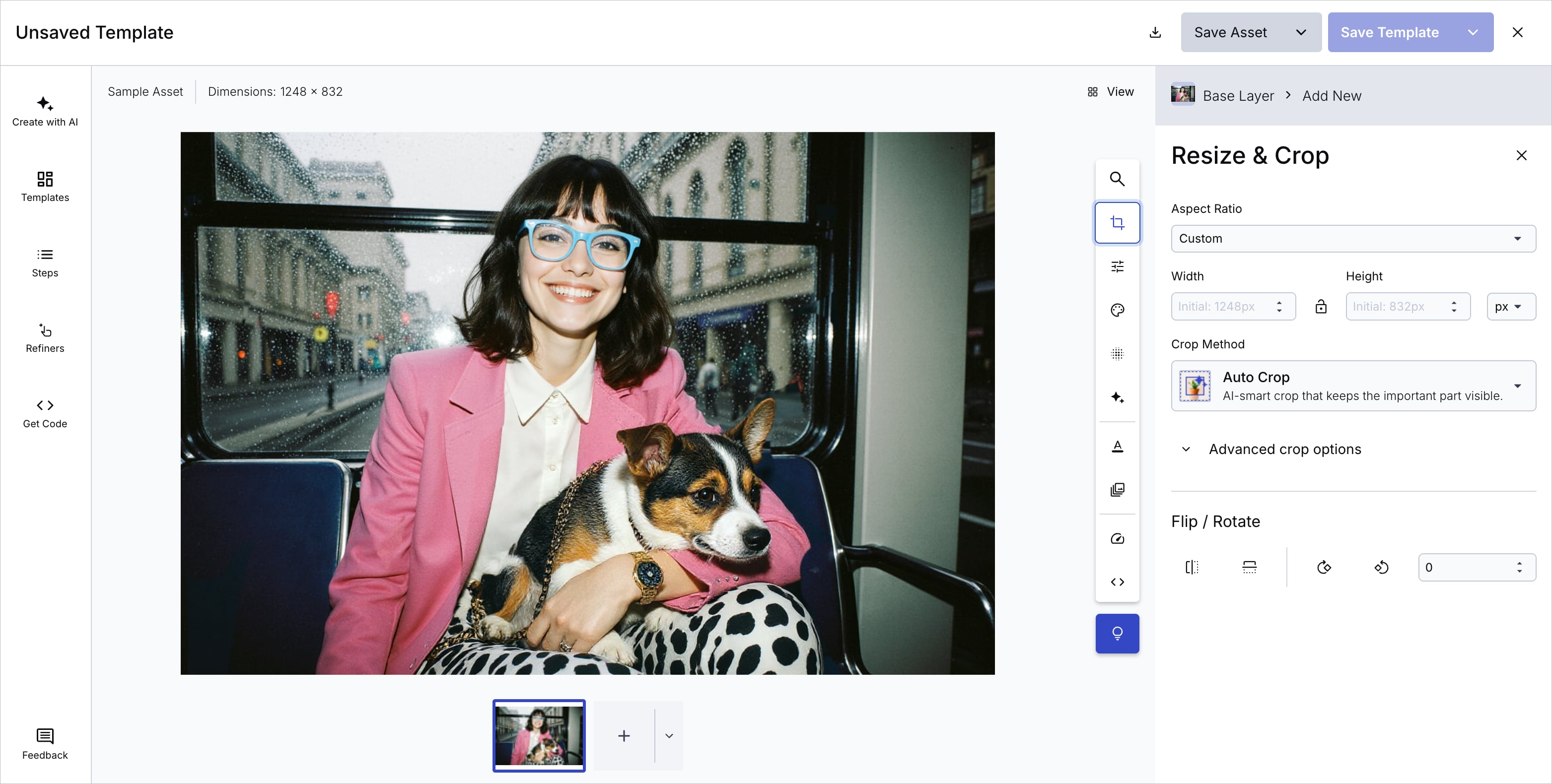
You can edit your images in Studio and trim videos in the Trim videos tool. Both are accessible from the asset management drill-down page by clicking the Edit pull-down button and selecting the action you want to perform.
Studio allows you to edit images (crop, resize, flip, rotate, apply effects, and more), either individually or in bulk. The Trim Video tool lets you trim videos one asset at a time. When you're finished editing, you can download the edited version without modifying the original, save it to overwrite the original asset (you can retrieve the original if you have backups enabled), or save the edited version as a new asset.
Transformation editor (videos only)
The Advanced Editor (Transformation Builder) provides a user-friendly interface, accessible to Assets Enterprise plans in the Media Library, for creating transformed video asset variations. You can start with an original asset or build on an asset that has already been transformed. Preview and customize a wide range of transformations using intuitive UI controls, then generate transformation URLs for delivering, downloading, or sharing transformed versions of your assets without changing the original.

For more details, see Advanced Editor in the Assets user guide.
Error
Rate this page:
